How to Make Text Type Itself in Google Docs (3 Ways, Timed)
 By Aarohan Niraula5 min read
Make text type itself in Google Docs with a Chrome extension, voice typing or a desktop script. Our timed run: a 160-word draft typed in 5 minutes.
To make text type itself in Google Docs, paste the draft into an auto typer extension, pick how long it should take, and press start. I timed TrickleType on 24 November 2026: a 160-word draft, 5 minutes asked for, last key at 5 minutes 45 seconds, because I paused it for 45 seconds on the way.
We make TrickleType, so weigh our view accordingly. Google Docs' own tool for this is voice typing, which types what you say, not a draft you already have. My run typed into a stand-in page, not a real Google Doc; the last section explains.
Three ways to make text type itself in Google Docs
| Auto typer extension (TrickleType) | Voice typing (built into Docs) | Desktop script (AutoHotkey) | |
|---|---|---|---|
| What it types | A draft you paste or upload | What you say | Text you put in a script |
| What you need | Chrome and the extension | A microphone, and Chrome, Edge or Safari | Windows and a script you write |
| Pace | You pick a finish time | Your speaking pace | Set in the script |
| Where the keys go | The Google Doc in your tab | The Doc | The active window |
Google's help page says voice typing "works with the latest versions of" Chrome, Edge and Safari, under Tools, then Voice typing. AutoHotkey's documentation describes its Send function in one line: "Sends simulated keystrokes and mouse clicks to the active window."
Type a draft with TrickleType, step by step
This is how I got TrickleType to make text type itself in Google Docs, with what the panel showed at each step.
- Open the Google Doc and click where the text should go.
- Open TrickleType from the Chrome toolbar. It opens in the side panel. A new install asks three things first: how long it should take, whether your laptop will stay open, and whether it should slip up sometimes. I picked the first option each time.
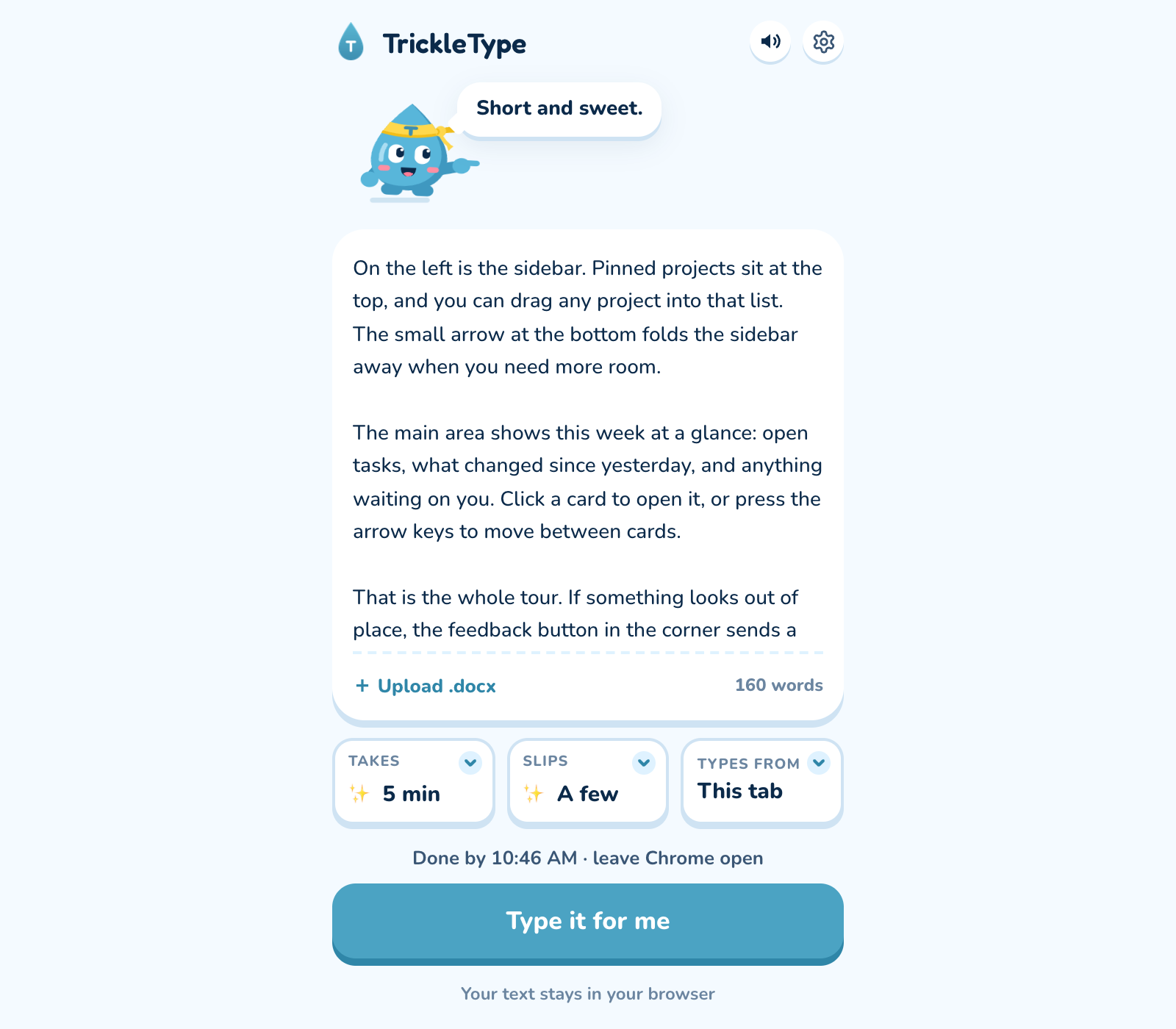
- Paste your draft, or upload a file. With my 160-word draft the panel showed "160 words" and filled in the rest: Takes "5 min", Slips "A few", Types from "This tab", and under them "Done by 10:46 AM · leave Chrome open".
- Change the time if you want. The time sheet said "I'll take about 5 min: a natural pace for 160 words." Its other choices run from 20 minutes to 10 days. Free runs go up to 3 hours.
- Press "Type it for me". The panel switches to a progress ring with the words typed and the finish time.
How TrickleType works has the short version of these steps.
The run, timed
| Draft | 160 words, 839 characters |
| Asked for | 5 minutes, a few slips |
| First key | 0.1 seconds after the start |
| Typos made and fixed | 17 |
| Paused | 45.3 seconds, two minutes in |
| Last key | 5 minutes 45 seconds after the start |
| Longest silence outside the pause | 6.9 seconds |
| Text matched the draft | Yes, character for character |
Take the pause out and the typing took the 5 minutes asked for, to within a tenth of a second. The pace was uneven: 10 silences of two seconds or more, 6 of them five seconds or more.
Two earlier runs show the limits. A 1,000-word draft over 30 and 60 minutes ended 17 to 18 seconds past the time asked for. A 321-word draft asked for in 1 minute took 1 minute 25 seconds, because the keys need that long.
Type from a .docx, .txt or .md file
The upload button reads the file into the draft box. I uploaded three small files and looked at what arrived:
| File | What arrived in the draft box |
|---|---|
| .txt, two lines | The same two lines, 13 words |
| .md with a heading, a bold word and two list items | The text as written, symbols included: "# Demo script", "**dashboard**", "- Pinned projects" |
| .docx with a Heading 1, a bold word and two list items | Four plain lines, 18 words. No heading, bold or bullets |
So a Word file comes in as plain paragraphs; add headings and bold in the Doc afterwards. A Markdown file keeps its symbols, so delete them in the draft box first.
What trips people up
- No Doc in front. With no Google Doc in the active tab, pressing the button showed "Open a Google Doc, click where the text goes, then press Start." and no keys were sent.
- The first start asks about the cloud. My first press opened "Want to close the laptop?" with "Try the cloud, free" and "No, type in this tab". The second one carries on in the tab.
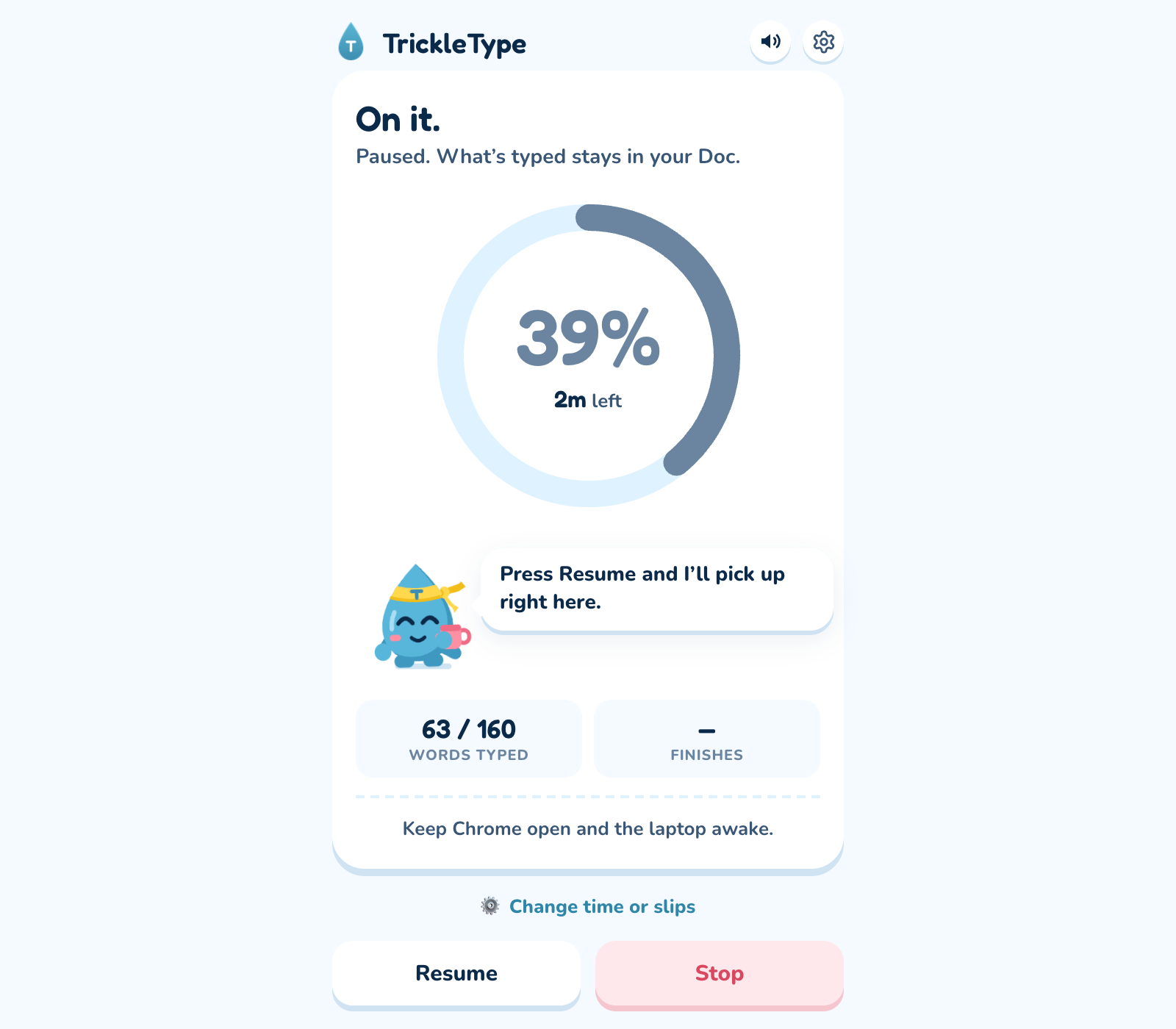
- A pause moves the finish. While paused the panel read "Paused. What's typed stays in your Doc." and showed no finish time. No keys were sent for 45.3 seconds. After Resume, the first key came 1.4 seconds later and the finish time moved from 10:46 to 10:47.
- Stop keeps what is typed, and counts only that. I stopped a second run of the same draft after 1 minute 42 seconds. The 303 characters already typed stayed and nothing came after. The free plan's 1,000 words a day went down by the 60 words typed, not the draft's 160.
Other ways to make text type itself in Google Docs, and when they fit
- You have no draft yet. Voice typing is built into Docs and costs nothing. You talk, it types.
- You need the keys in another app. TrickleType only types into Google Docs. A desktop script sends keys to whichever window is active, so it can reach other apps, and the Doc has to stay in front while it runs.
- You have a finished draft and a time in mind. That is the auto typer's job: a screen recording, a live demo, or moving a draft from another app into Docs. Typing in a tab needs Chrome open and the computer awake; with the laptop closed it is cloud typing, part of Pro.
How I checked this
On 24 November 2026 I downloaded TrickleType 1.4.7 from the Chrome Web Store and ran it in headless Chrome 153 on a fresh install, with no licence key and no account. The set-up questions, draft box, time sheet, upload button, Pause, Resume and Stop were the shipped panel, clicked and read as they are. The page that received the keys timestamped each one.
That page was a local stand-in for a Google Doc, because an unattended browser can't sign in to Google. So the numbers show the extension's timing and messages, not Google Docs' behaviour. Both runs were started with the message the start button sends, because the panel was open as a tab, not docked beside a Doc. One run per setting, not an average. I read the voice typing and AutoHotkey pages the same day and ran neither.
Frequently asked questions
Is TrickleType free?
Yes. The free plan types up to 1,000 words a day in runs of up to 3 hours, with no account. Pro is $6.99 a month: no word limit in a tab, runs up to 10 days, and cloud typing (beta) that keeps going with the laptop closed.
Does it work in Google Slides or Sheets?
No. TrickleType types into Google Docs only.
Do I need to sign in to Google?
Not for typing in a tab. The extension only runs on docs.google.com. Cloud typing asks you to connect Google and allow the one Doc it should type into.
Use TrickleType only where you're allowed to. It types your text; it does not make anyone's work yours.